1.
-
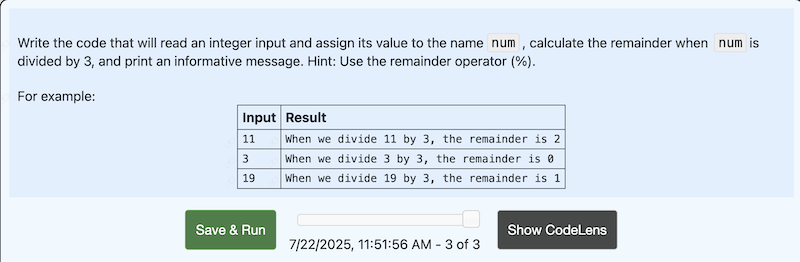
The first thing you should do when starting a problem is to carefully read the problem description. The problem description tells you what your solution code needs to accomplish, as well as important details about the problem including:
-
Type of input your code must handle
-
Type of output your code will need to produce
-
Whether your code should produce output (print) or a value (return)
-
If you don’t understand the problem, you won’t be able to solve the problem; this is the most important step!
-
-
To help you understand the problem, you will always be given a few examples. Typically, the examples show sample inputs and the result that your code should produce for each input. It’s important to understand that your solution needs to be general. This means that your goal is to code a solution that will work for any valid input for the problem, not just the given examples.
-
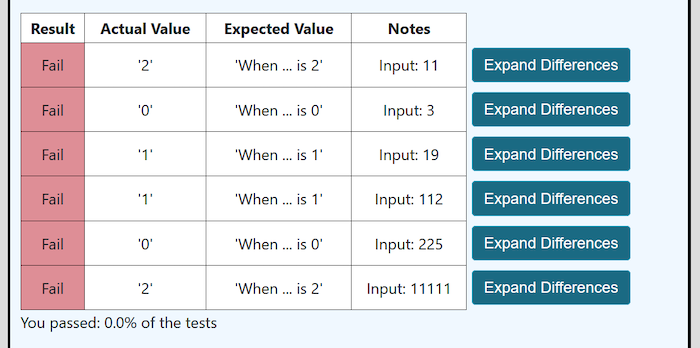
Once you understand the problem, you can start coding your solution in the white box. Depending on the problem, there may be some code already there to get you started. When you are ready to check your solution, click the “Save & Run” button.If I were to click the “Save & Run” button for the example problem in the image above, here is the feedback that I would get from Runestone:For each example input, Runestone shows you the correct (Expected Value) result, the result produced by your code (Actual Value), and whether your result is correct (Result). If the expected value or actual value is too long to be fully shown in the results table, clicking on the “Expand Differences” button will show that information in a popup window.
-
Use the Runestone feedback to try to understand where the problems are in your code, then work on fixing your code. Keep checking and revising until you reach the correct solution.
True.
False.
Welcome to ActiveCode coding problems in Runestone! Here’s an image of a typical coding problem:
Now it is time for you to try solving some ActiveCode problems in Runestone! Select the answer "True" and click the "Check Me" button before moving on.

